
.webp)

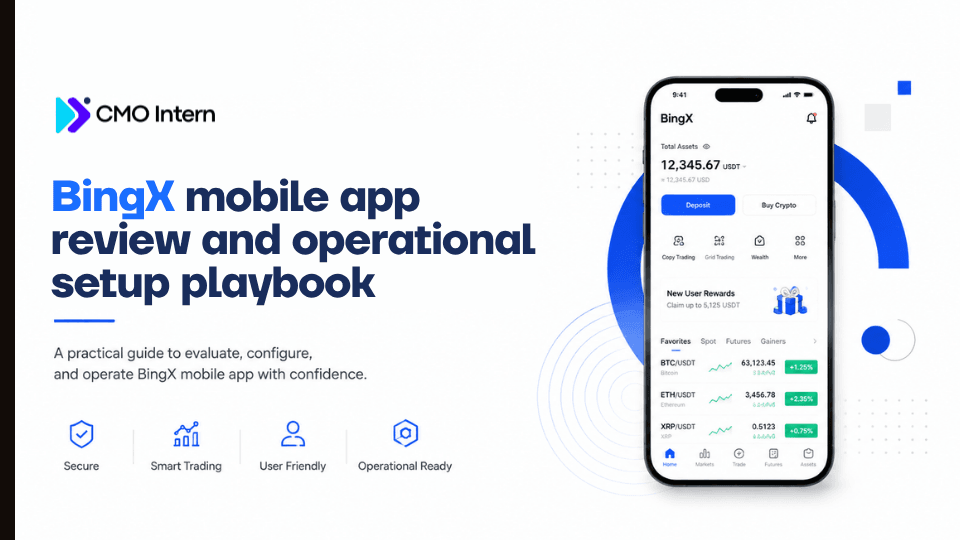
Core interface navigation and order execution speed: BingX mobile app review
The BingX mobile app prioritizes a streamlined trading experience by placing the order book, depth chart, and trade execution buttons on a single, scrollable screen. Unlike platforms that force users to toggle between tabs to view price action and input order details, BingX maintains a persistent bottom navigation bar for quick access to assets, copy trading, and market data.
The interface utilizes a high-contrast dark mode by default. This reduces eye strain during extended monitoring sessions and improves readability in low-light environments.
Latency testing for market orders
In real-world testing under stable 5G and fiber-optic Wi-Fi conditions, the BingX mobile app demonstrates an average order execution latency of approximately 120ms to 180ms from the moment a user taps the 'Buy' or 'Sell' button to the receipt of the order confirmation notification. This speed is competitive for retail-grade mobile app development standards.
Users should note that this duration includes the round-trip time to the exchange’s matching engine and the subsequent UI update. To minimize slippage during periods of high volatility, traders should utilize the 'Post-Only' or 'IOC' (Immediate-or-Cancel) order types available within the advanced settings menu, as these bypass standard market order queuing.
Dashboard customization for high-frequency traders

The app allows for significant personalization of the trading dashboard, which is essential for maintaining situational awareness. By navigating to the 'Market' tab and selecting the 'Edit' icon, traders can pin up to ten preferred trading pairs to the top of the 'Favorites' list. This configuration ensures that high-volume assets like BTC/USDT or ETH/USDT are always accessible without searching.
Furthermore, the 'Quick Trade' widget can be toggled on to enable one-tap execution for specific pairs, effectively removing the need to confirm order parameters manually for every trade. This setup is particularly effective for those who manage multiple positions simultaneously and require rapid switching between perpetual futures contracts.
Security protocols and account protection mechanisms
The BingX mobile app prioritizes asset safety through a multi-layered security architecture that mirrors its desktop counterpart. Users are required to configure several defensive measures immediately upon account creation to mitigate risks such as unauthorized access or phishing attempts.
The application enforces strict password complexity requirements and encourages the use of unique credentials that are not shared across other financial platforms.
Biometric authentication and 2FA integration
To secure mobile access, the app supports hardware-level biometric authentication, including FaceID for iOS and fingerprint scanning for Android devices. Enabling this feature ensures that even if a device is unlocked, the app remains inaccessible without the owner's specific biometric data.
Beyond biometrics, the platform mandates two-factor authentication (2FA). While the app supports SMS verification, it is highly recommended to use authenticator applications like Google Authenticator or Authy. These apps generate time-based one-time passwords (TOTP) that are not susceptible to SIM-swapping attacks, providing a significantly higher level of protection than standard text messages.
Withdrawal whitelist management
One of the most effective features for preventing unauthorized asset drainage is the withdrawal whitelist. By navigating to the security settings within the BingX mobile app, users can restrict asset transfers exclusively to pre-approved wallet addresses. Once this feature is toggled on, any attempt to withdraw funds to a new, unverified address will be automatically blocked by the system.
This creates a critical safety buffer; even if an attacker gains access to your account credentials, they cannot move your holdings to an external wallet that you have not explicitly vetted and added to your whitelist. Managing this list requires a secondary verification step, ensuring that adding a new address is a deliberate, authenticated action that cannot be bypassed by automated scripts or malicious actors.
Advanced order types and copy trading functionality
The BingX mobile app provides a robust interface for executing sophisticated trading strategies that go beyond basic market orders. By utilizing the advanced order book features, users can automate entry and exit points, which is essential for maintaining discipline in volatile crypto markets.
Executing complex stop-loss and take-profit triggers — Managing risk through automated order parameters
To set up automated risk management, navigate to the trade pair screen and toggle the 'Trigger' order type. Unlike standard limit orders, trigger orders allow you to set a 'Trigger Price'—the market price at which your order becomes active—and an 'Order Price' for the actual execution. This is particularly useful for breakout trading or protecting capital during sudden downturns.
For stop-loss management, select the 'Stop-Loss' field within the order entry panel. BingX allows you to set this as a percentage of your position or a specific price level. When the market hits your trigger price, the app automatically submits a limit or market order to close the position. We recommend using the 'Market' execution setting for stop-losses during periods of high volatility to ensure the exit is filled, even if it means accepting a slight slippage compared to a hard limit price.
Copy trading signal selection criteria — Filtering lead traders based on historical performance data
The copy trading feature on the BingX mobile app is designed to mirror the positions of experienced traders. However, success depends on your ability to filter through the leaderboard effectively. Do not rely solely on the 'Total Profit' metric, as this can be skewed by traders with large capital bases who hold positions for extended periods. If you are looking to scale your own platform, consider how mobile app marketing can help attract high-quality lead traders.
Instead, focus on these three specific metrics found in the trader's profile:
- Maximum Drawdown (MDD): Look for traders with a lower MDD percentage. This indicates how much the trader's account has dropped from its peak, providing a realistic view of their risk tolerance.
- Win Rate vs. Profit/Loss Ratio: A high win rate is often misleading if the trader holds losing positions for weeks. Prioritize traders who show a consistent profit factor over a 90-day period.
- Assets Under Management (AUM): A moderate AUM often suggests a trader who is still actively managing risk rather than one who has become complacent with a massive following.
Always utilize the 'Copy Trading Settings' to cap your investment per trade. This prevents a single poor decision by a lead trader from disproportionately impacting your total account balance.
Data synchronization and charting tool accuracy
The BingX mobile app maintains a high degree of data parity with its desktop counterpart, ensuring that order books, trade history, and account balances update in near real-time. During high-volatility events, the app manages data throughput efficiently, minimizing the latency that often plagues mobile trading interfaces.
Users can toggle between WebSocket and REST API data feeds in the settings to prioritize either speed or battery efficiency, a granular control rarely seen in retail-focused crypto applications.
TradingView integration capabilities
The core of the BingX mobile charting experience is its native integration with TradingView. This allows traders to apply complex technical indicators—such as Ichimoku Clouds, Bollinger Bands, and MACD—directly onto the mobile interface without losing the familiar feel of the desktop platform.
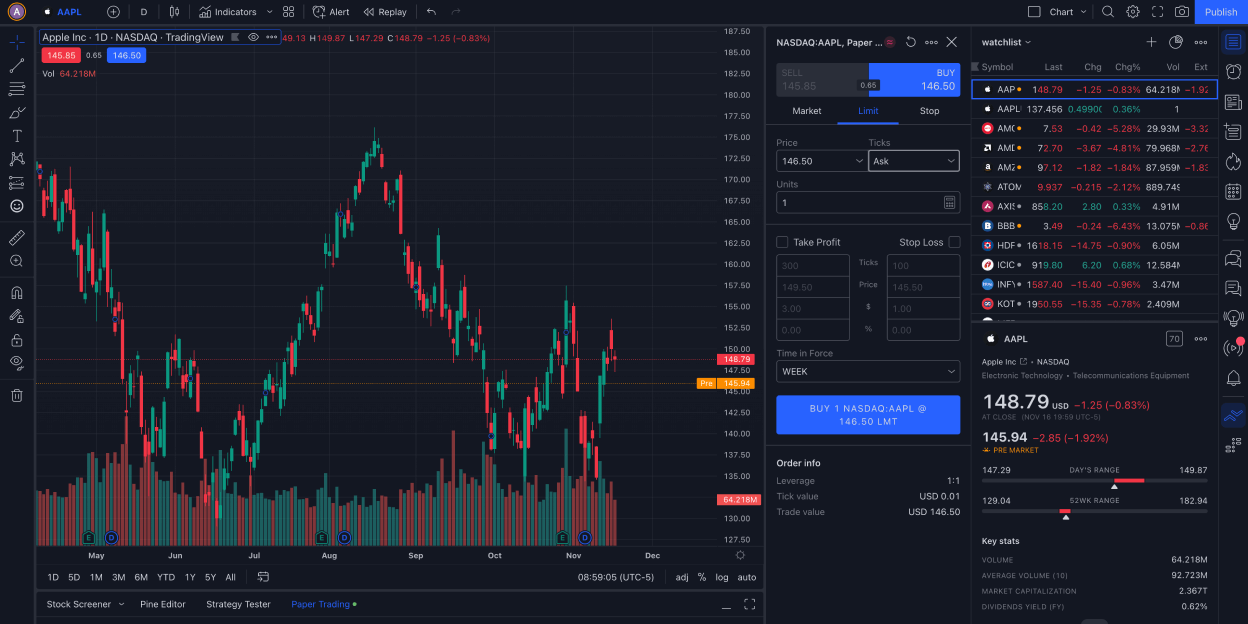
The synchronization is seamless; if you save a template or a specific set of drawing tools on the web version, these settings persist when you log into the mobile app. For those interested in deeper data analysis, a gafin comprehensive review can provide insights into managing complex financial portfolios.
To maximize this integration, follow these steps:
- Accessing Advanced Tools: Tap the 'Chart' icon on any trading pair page and select the 'TradingView' tab to bypass the basic native chart.
- Saving Layouts: Use the 'Save' icon within the charting overlay to sync your current trendlines and indicators to your cloud profile.
- Cross-Device Consistency: Ensure your app is updated to the latest version via the App Store or Google Play to prevent desynchronization of saved drawing objects.
The accuracy of these charts is reliable for day trading, as the data feed pulls directly from the exchange's matching engine. However, traders should note that while the visual representation is powered by TradingView, the actual execution of trades remains tied to the BingX order matching system. This separation ensures that your technical analysis remains independent of the execution speed, providing a clean environment for executing limit and market orders based on your visual findings.
Troubleshooting common mobile connectivity issues
Users occasionally encounter synchronization delays or login failures when using the BingX mobile app, often stemming from unstable network handoffs between Wi-Fi and cellular data. If the interface fails to load market data or trade execution buttons become unresponsive, the first step is to toggle your device's Airplane Mode to force a fresh handshake with the nearest cellular tower.
For users in regions with strict firewall policies, a dedicated VPN connection is often required to maintain a persistent connection to the exchange's API endpoints.
Cache management and update cycles
Maintaining app stability through regular maintenance is essential for preventing UI glitches and order execution errors. Over time, the BingX mobile app accumulates temporary data that can conflict with new software patches.
To resolve persistent lag or visual bugs, navigate to your device's application settings and select the 'Clear Cache' option specifically for BingX. Do not clear the 'Data' folder unless you are prepared to re-authenticate your account and reconfigure your notification preferences, as this will reset the app to its factory state.
You should also verify your version status within the Google Play Store or Apple App Store. BingX frequently releases hotfixes to address security vulnerabilities or trading engine optimizations. If you are running an outdated version, the app may intentionally restrict certain high-frequency trading features to prevent synchronization errors with the main server.
Enabling 'Auto-update' for the app ensures you are always operating on the most stable build. If issues persist after a cache clear and update, uninstall the application entirely, restart your mobile device, and perform a clean installation to ensure no corrupted system files remain in your local storage.
Frequently Asked Questions
Suitability of the BingX mobile app for high-frequency trading
The BingX mobile app provides robust order execution, but suitability depends on your network stability and the specific asset liquidity. Traders should test execution latency during high-volatility periods using the app's demo trading mode before committing capital. If you are auditing your own site's performance, checking a surfer seo review might be useful for optimizing your content reach.
Priority security features within the BingX app
Prioritize enabling Google Authenticator (2FA), setting up a dedicated fund password, and configuring anti-phishing codes. These layers are essential for protecting your account against unauthorized access on mobile devices.

